"99% Accuracy" Claims Are Almost Meaningless — Here Is What Is Not
Most OCR products advertise a single accuracy percentage, and it is worth being honest about what that number actually is: usually a marketing decision, not a measurement against a public benchmark. Real OCR accuracy is not a fixed property of the software at all — it is a property of the specific image or scan you feed it. The same engine reading a crisp, high-resolution business letter and a blurry photo of a handwritten note taken at an angle will produce wildly different results, and no single percentage can describe both. What is actually useful is knowing which factors move that number, because most of them are things you control before you ever click "extract text."
Four Factors That Decide Whether OCR Gets It Right
- Scan resolution and contrast — low-resolution photos and faint or low-contrast text give the recognition engine less signal to work with, regardless of how good the engine is.
- Rotation, skew, and perspective distortion — a page photographed at an angle, or a scan that is slightly crooked, confuses character boundaries before recognition even starts.
- Printed versus handwritten text — block handwriting is far more consistent than cursive, and both are inherently harder than typed text because there is no fixed character shape to match against.
- Language selection — auto-detection is convenient, but manually selecting the actual language of the document gives the engine a narrower, more accurate character set to match against.
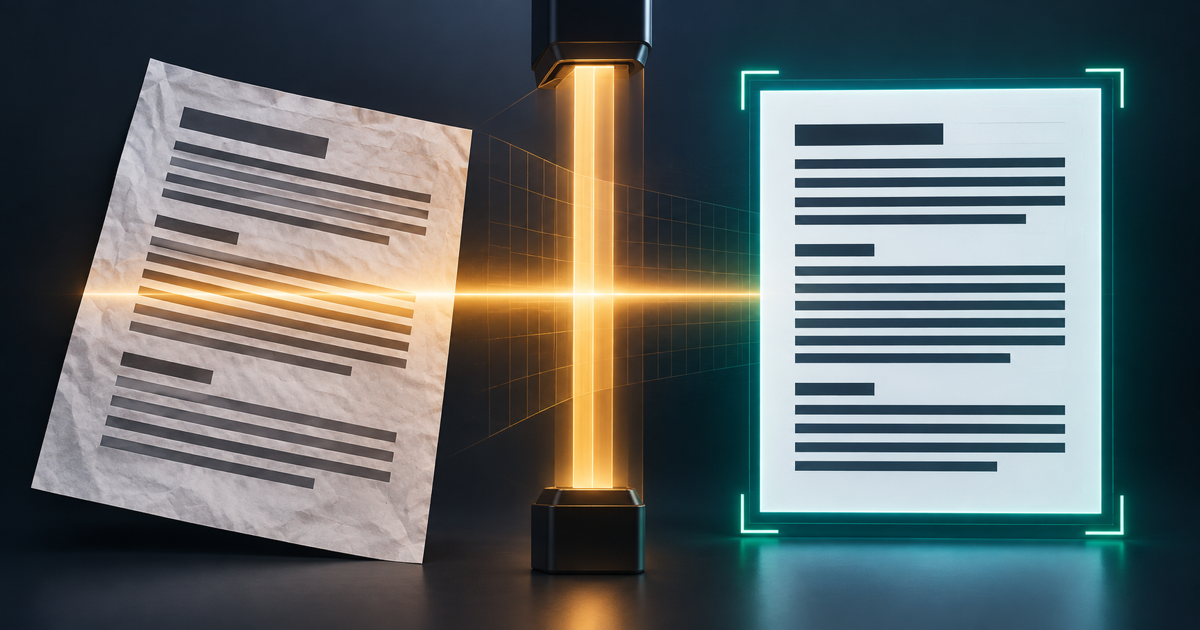
This is also why "rotated and skewed text" correction is a real, checkable feature rather than a footnote: a scan corrected for rotation and perspective distortion before recognition starts is solving one of the four factors above, directly, rather than hoping the recognition step is smart enough to compensate.
Tables and Structured Layouts Are a Different Problem Than Plain Text
Recognizing that a group of characters spells a word is only half of OCR. The other half — for forms, invoices, and financial statements — is recognizing that the text belongs in a specific row and column, not just somewhere on the page. Table detection identifies rows, columns, and cell boundaries, and exports that structure directly to a spreadsheet or a structured document rather than flattening a table into disconnected lines of text. Multi-column layouts have the same problem in miniature: reading order has to be inferred, not assumed, or a two-column page comes out with sentences from both columns interleaved.
Choosing the Right Output Format Matters as Much as the Recognition Itself
Extracted text is not the only useful output, and picking the wrong one wastes the recognition work that already happened. Plain text (TXT) is the right choice for feeding a script, a translation tool, or a summarizer. An editable Word document (DOCX) preserves paragraph structure for further editing. A searchable PDF keeps the original scan exactly as it looked, but adds an invisible text layer underneath it — the document still looks like the scan, but can now be searched and text can be copy-pasted from it. Excel or CSV is the right target specifically for extracted tables, not general text.
What Happens After You Hit Extract
- Upload your image, scanned PDF, or multi-page document.
- Select the language, output format (TXT, DOCX, or searchable PDF), and any special options — table extraction or handwriting mode.
- The engine corrects skew and rotation, enhances contrast, and recognizes text against the selected language.
- Download your editable text, formatted document, or searchable PDF.
Why does OCR work better on some scans than others?
Because accuracy depends on the specific input, not a fixed property of the engine — scan resolution and contrast, rotation or skew, whether the text is printed or handwritten, and which language is selected all move the result independently of each other.
Why is cursive handwriting harder for OCR than block handwriting?
Because block handwriting keeps each letter as a separate, consistent shape — closer to printed text — while cursive letters flow into each other and change shape depending on their neighbors, which is exactly the kind of variability the four accuracy factors above are sensitive to. Both are supported across the same languages, but cursive needs a clearer scan to get comparable results.
Why does a multi-column page sometimes come out with sentences mixed together?
Because reading order is not visual, it has to be inferred. Table detection and multi-column handling are solved separately from character recognition — rows, columns, and cell boundaries or column order are identified first, before the text is extracted, rather than just scanning left to right across the page.
What is a searchable PDF, and how is it different from a normal OCR export?
A searchable PDF keeps the original scanned page looking exactly as it did, but adds an invisible text layer underneath — the document still looks like the scan, but its text can now be searched and copy-pasted.
Does selecting the wrong language reduce accuracy?
Yes. Auto-detection is convenient but gives the engine a wider, less precise character set to match against. Manually selecting the actual language of the document — out of 14+ supported languages — narrows that set and produces measurably more accurate results, especially for languages with overlapping character shapes.
Is my scanned document kept private?
Yes. Files are encrypted in transit and at rest, processed in an isolated environment, and are not used to train any models.
Extract Text From a Real Scan, Not a Perfect One
Upload a scanned document, photo, or multi-page PDF and see what the recognition actually produces — skew correction, table detection, and handwriting mode included.
Extract Text Free